Your first ten minutes in the demo
The demo runs in your browser with sample students. Explore freely; nothing you type is uploaded.
-
Open the demo
The demo opens straight into a sample caseload: three students, each at a different point in the evaluation process.
-
Pick a student
Choose a name in the left sidebar. The module tabs across the top hold that student's whole evaluation.
-
Walk the tabs, M1 to M5
Each module is one phase of the work, in the order you actually do it.
-
Preview the MET draft
Open Export, then Draft full MET to clipboard, to see every section the modules have written, in report order.
Five modules, one evaluation
REDAssist is organized the way an evaluation actually unfolds. Each module is a tab, and every module feeds the MET draft.
- M1Evaluation DashboardDemographics, contacts, screenings, eligibility history, and the contact log.
- M2Referral & HistoryReason for referral, plus background, medical, and developmental history.
- M3Present Levels & InterventionPresent levels, intervention history, and CBM progress monitoring.
- M4Assessment ResultsScores, descriptions, observations, and interpretation for every domain.
- M5Eligibility MET MeetingUpdates, evidence, the eligibility questions, the decision, and closing.
- DraftMET draftEvery section compiled in report order, ready to review and edit.
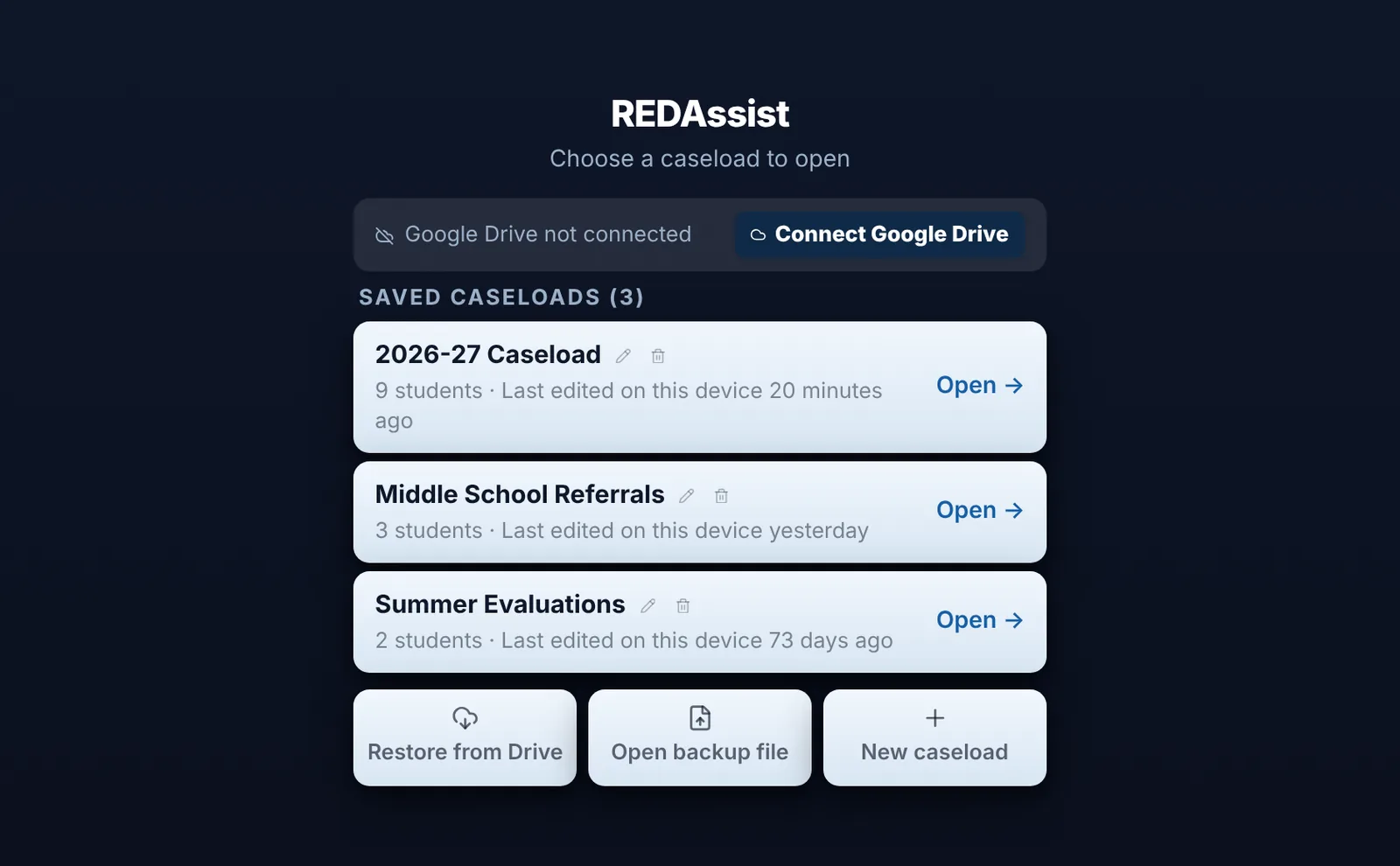
The caseload picker
Every session starts by choosing which caseload to open. Nothing loads on its own, so you always know whose records are on the screen.
- Keep separate caseloads by school year, campus, or project. Each one has its own storage and its own backups.
- Each card shows how many students it holds and when it was last edited on this device, so an old copy is easy to spot.
- Restore from Google Drive, open a backup file, or start a new caseload from the same screen.
The public demo skips this screen and opens its sample caseload directly.
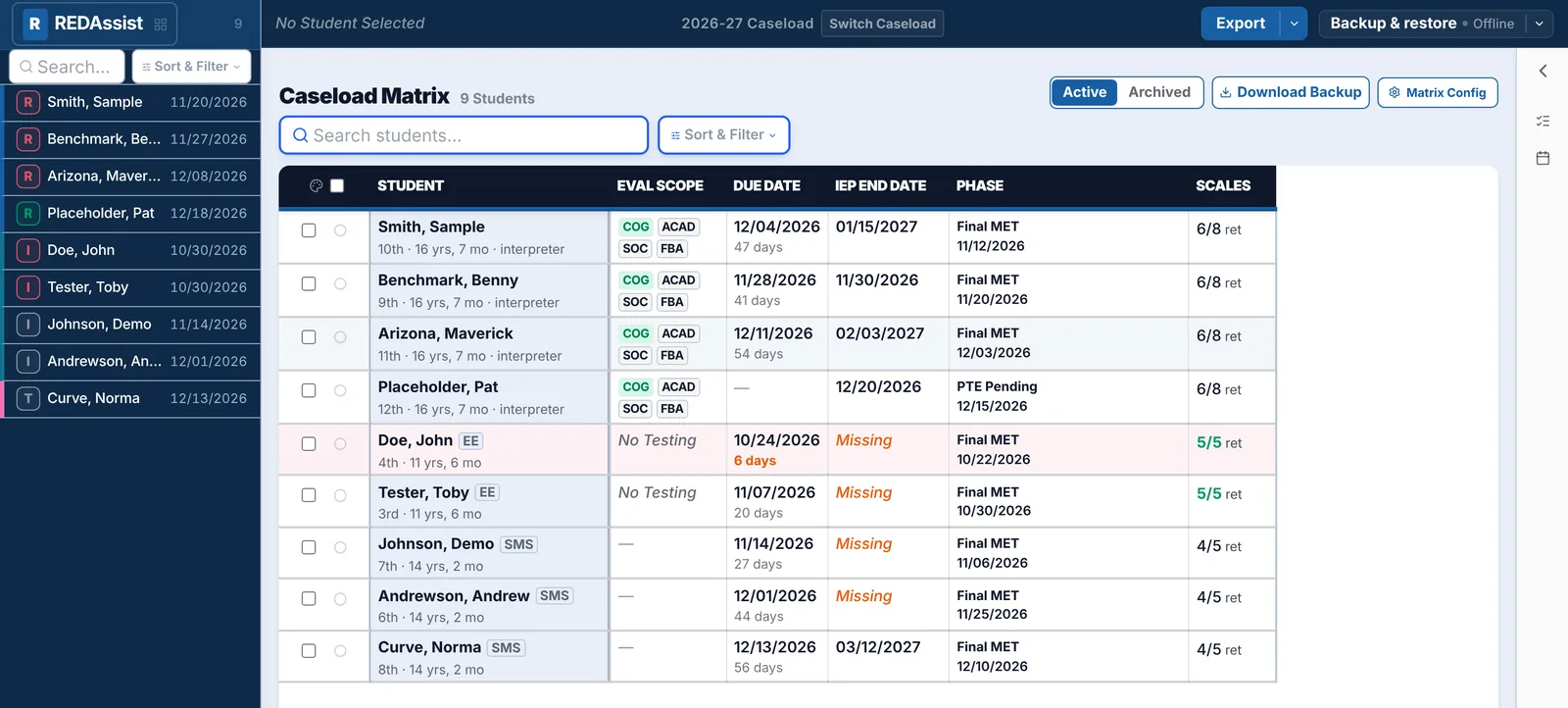
The Caseload Matrix
Before you open a single student, the matrix shows where every evaluation stands. One row per student, built automatically from what you enter in the modules.
- Evaluation scope at a glance: cognitive, academic, social-emotional, FBA.
- Due dates with a live day count, so the next deadline is never a surprise.
- IEP end dates and the current phase, like PTE Pending or the date of the final MET.
- Rating scales returned against rating scales sent, for every student.
- Active and Archived views, sorting, filters, and a Matrix Config menu to tailor the view.
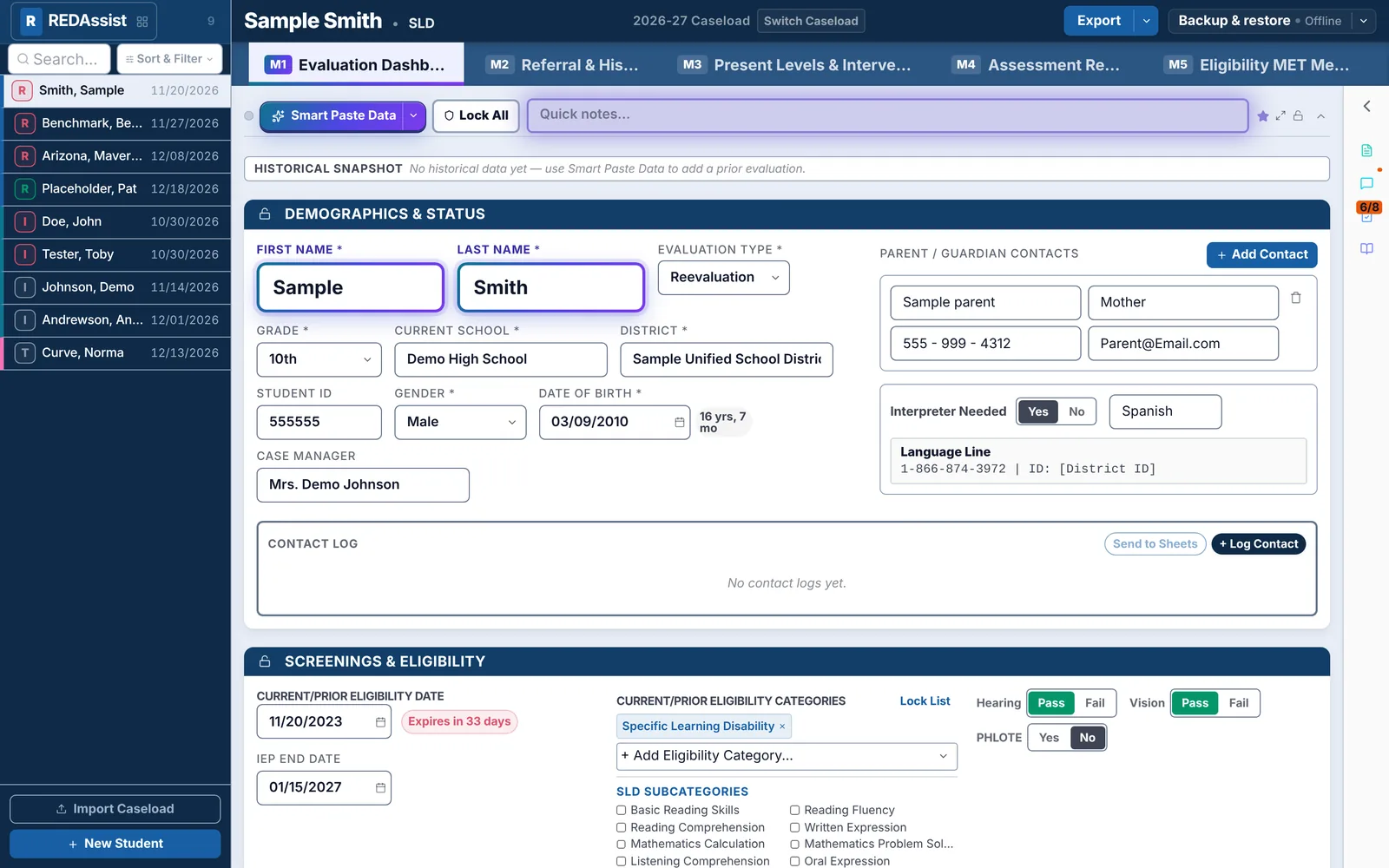
Evaluation Dashboard
The student's front page. Identifying information, family contacts, screenings, and eligibility history live here, along with a running record of every contact.
- Demographics, guardian contacts, and interpreter needs in one place.
- Hearing and vision screenings, plus current and prior eligibility with expiration warnings.
- A contact log for every call, email, and meeting.
- Smart Paste Data reads a table you paste from a Google Doc, a Word file, or other evaluation software and fills in the matching fields.
- Quick notes, plus Lock All to protect finished sections from accidental edits.
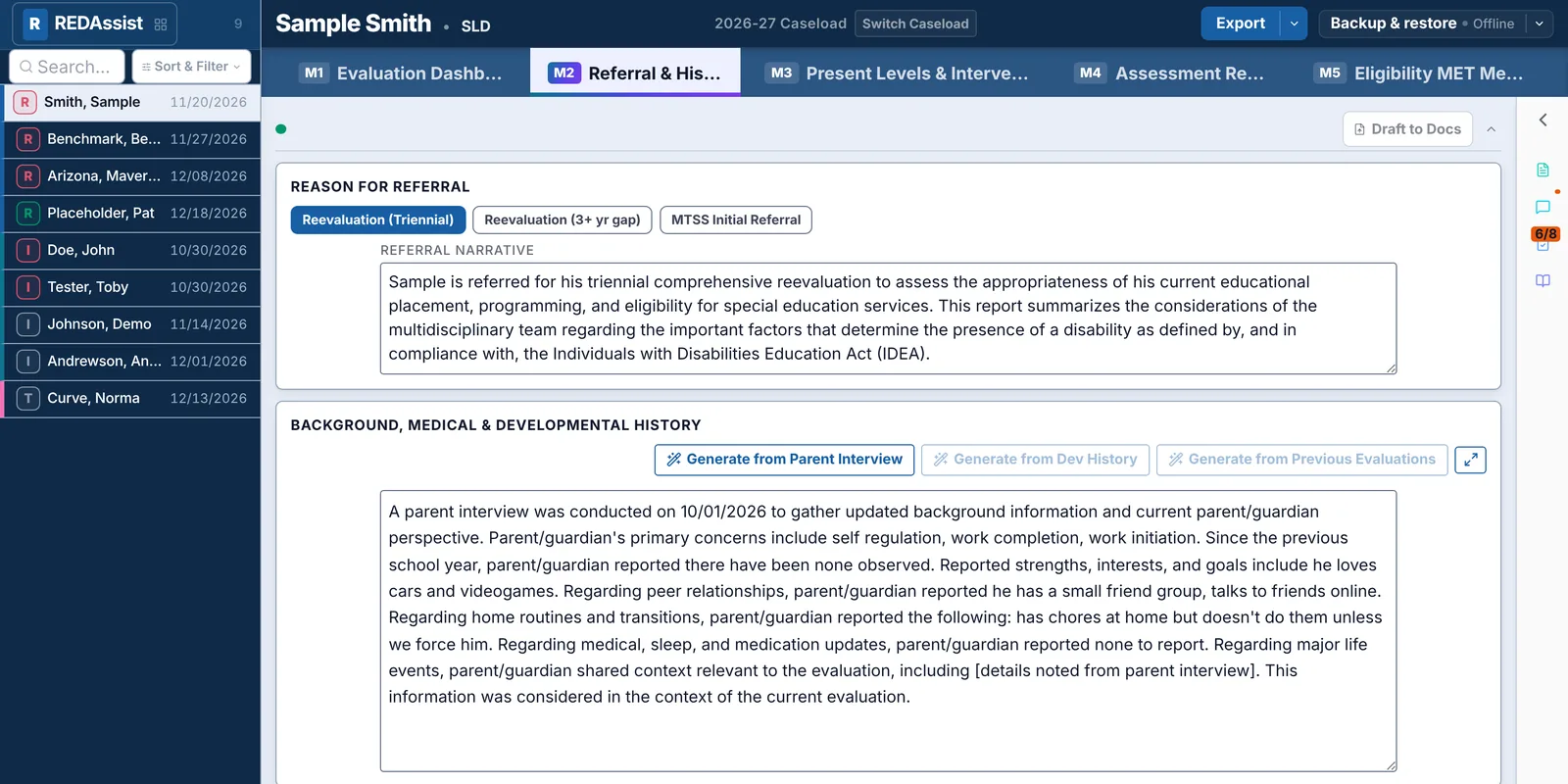
Referral & History
Choose the reason for referral (a triennial reevaluation, a reevaluation after a gap, or an initial referral from MTSS) and REDAssist drafts the referral narrative to match.
- Background, medical, and developmental history drafted from the parent interview, a developmental history form, or previous evaluations.
- Every generated sentence is plain, editable text. Keep it, change it, or write your own.
- Draft to Docs sends the section to Google Docs when Drive is connected.
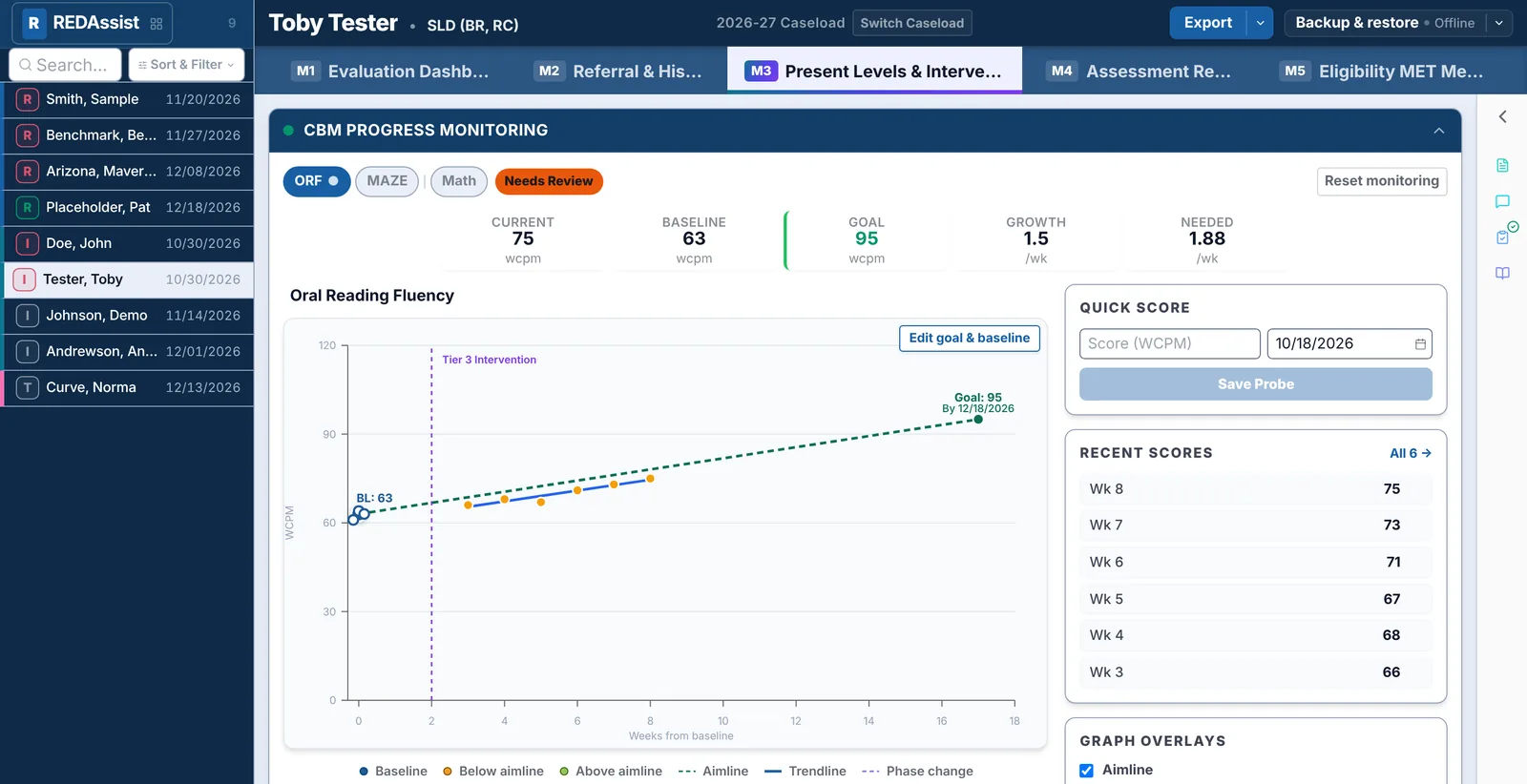
Present Levels & Intervention
Present levels and intervention history, with curriculum-based measurement built right in.
- Track oral reading fluency, MAZE, and math probes.
- Baseline, goal, current score, and growth rate against the rate needed.
- A progress graph with the aimline, the trendline, and a phase line for each intervention change.
- A status flag (On Track, Needs Review, or Intensify Support) based on how the trend compares to the aimline.
- Quick Score adds a new probe in seconds.
Assessment Results
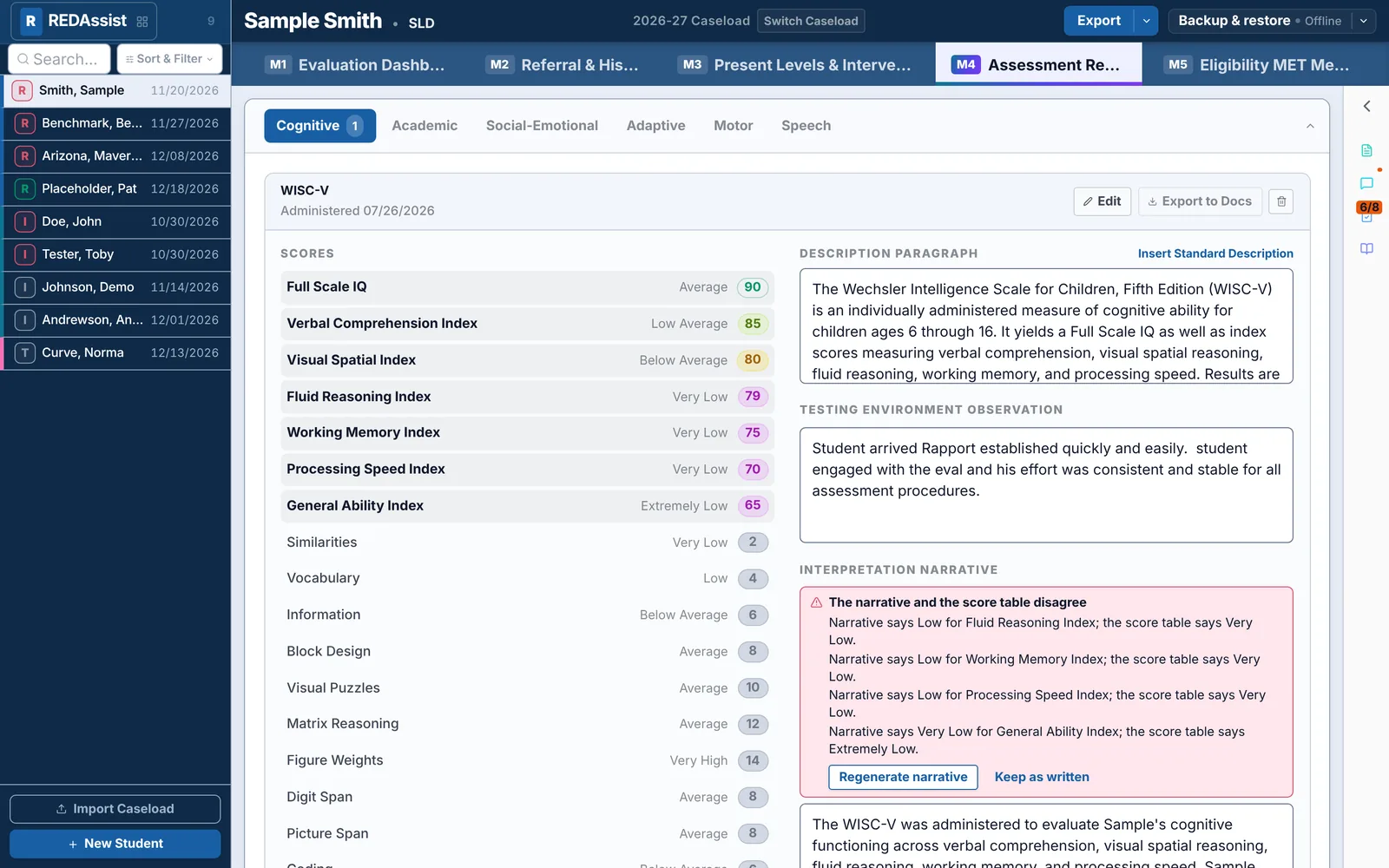
Scores for every domain: cognitive, academic, social-emotional, adaptive, motor, and speech.
- Enter the scores and the descriptive ranges fill in automatically.
- Insert a standard test description with one click, then add your testing observations.
- Interpretation narratives drafted from the scores.
The narrative check. If the narrative says Low and the score table says Very Low, REDAssist flags it and offers to regenerate the narrative or keep what you wrote.
Eligibility MET Meeting
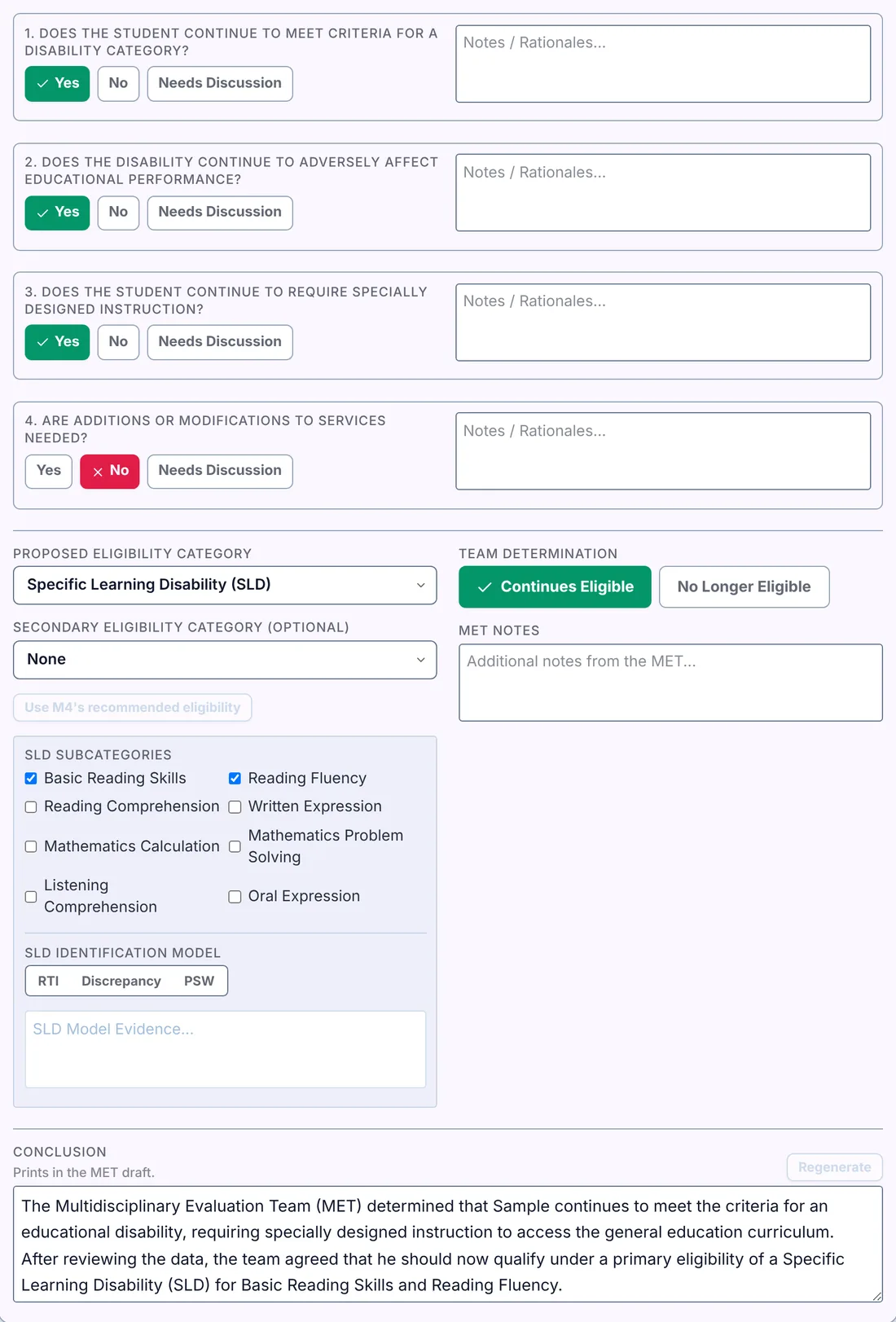
M5 runs the meeting itself, in four stages: Attendance & Updates, Evidence & Data, Eligibility, and Decision & Closing.
- The team's eligibility questions, each answered Yes, No, or Needs Discussion, with room for notes.
- Proposed and secondary category, SLD areas, and the identification model (RTI, discrepancy, or PSW).
- One click copies M4's recommended eligibility into the meeting fields. The team still makes the decision.
- A conclusion paragraph drafted from the team's answers, ready to edit.
- A closing checklist: determination reviewed, parent questions answered, next steps explained, prior written notice, procedural safeguards offered.
The MET draft
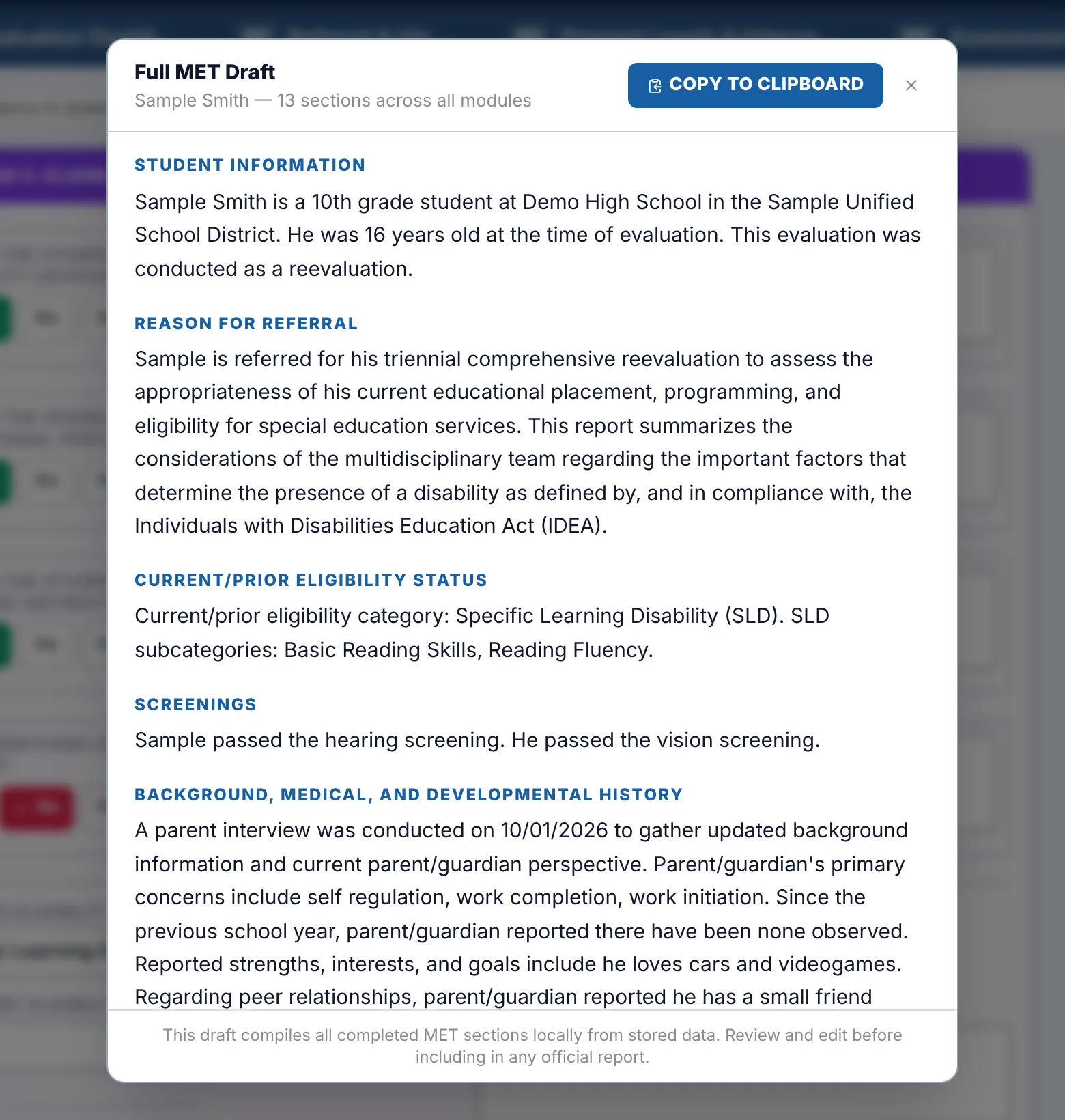
Everything the modules write comes together in one draft, in report order: student information, reason for referral, eligibility status, screenings, background, assessment results, and the team's conclusion.
- Copy to clipboard and paste into your district's report template.
- Download a Word (.docx) file with formatted score tables.
- Send it to Google Docs when Drive is connected (not available in the demo).
A draft, not a final report. REDAssist compiles what you entered. Review and edit every section before it goes into an official report.
Saving, backups, and restore
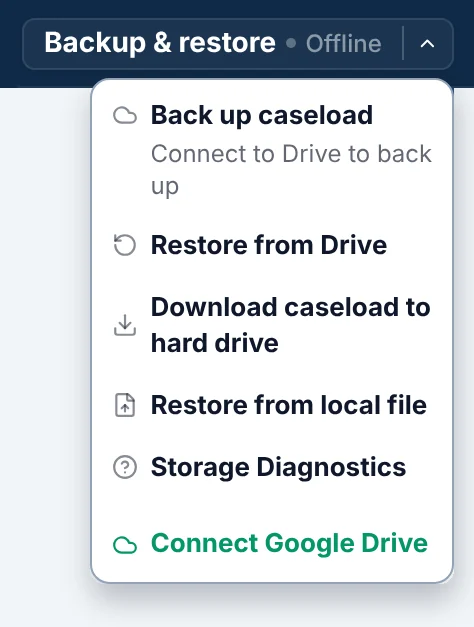
REDAssist saves as you work, to the browser on your device. One menu handles everything else.
- Automatic Google Drive backups (when connected): when you open a caseload, every ten minutes, and when you close the tab.
- Download the caseload as a backup file and restore it on any computer.
- Restore from Drive or from a file, with a clear warning first and Undo restore afterward.
- Storage Diagnostics shows what's saved and where.
Common questions
Do I need an account or an internet connection?
No account is needed. Once REDAssist is open, it keeps working without an internet connection, and everything saves to your device.
Google is optional. You need a connection only for Drive backups and the Google Docs, Sheets, and Gmail features.
Where is my data saved?
In the browser you're using, on that device. It doesn't sync between computers or browsers on its own. Drive backups and downloaded backup files are how you protect it and move it.
The details, including what never leaves your device, are on the FERPA & Data Privacy page.
What happens if I clear my browser data?
Clearing site data for REDAssist erases the caseloads saved in that browser. Keep a recent backup in Drive or in a file, and you can restore everything from the caseload picker.
Can I work on more than one computer?
Yes, by moving a backup. Download the caseload on one computer and choose Open backup file on the other, or restore from Drive.
What if REDAssist is open in two tabs?
The second tab opens read-only, so the two can't overwrite each other. A banner tells you, and you can take control in the tab you want to keep using.
Can I undo a restore?
Yes. A restore always asks first and keeps a snapshot of your current work. Undo restore brings it back, up until your next edit.
Does REDAssist write the report for me?
It drafts from what you enter, and every word stays editable. The narratives are a head start, not a finished product. Your professional judgment decides what goes in the report.
Does REDAssist decide eligibility?
No. It organizes the evidence and can suggest a category from your assessment data, but the eligibility decision belongs to the team.
Can I try the online demo with real students?
Please don't. The demo is a public sandbox for exploring with sample students. It keeps what you type only in your browser and uploads nothing, but real student records belong only in a setup your district has approved.
Can my team get a tool like this?
Yes. REDAssist is one example of what I build. I design tools around a team's actual workflow, with training so they stick. See consulting or get in touch.
See it with sample students
The demo runs in your browser. Nothing you type is uploaded, and there's nothing to install.